Hushed Studio · Help manual
Understand your story. Then create it.
First, learn what Character, World, Lorebook and Prompt pack each contribute. Then follow the creation steps, ask the Agent for help, and check your work in a conversation.
English guide · Updated November 2, 2026 · Sign in to create and edit works.
Part 1 · Understand the building blocks
Studio calls each character, world, lorebook and prompt pack a work. Each has a different job. Only a character is required to start a conversation; add the other works when your story needs them.
Character — who you talk to
A Character defines the person the AI plays: their personality, background, voice, relationship to the visitor and opening message. It answers “Who is speaking, and how do they act?”
Count Adrian Vale: a courteous vampire who lives in a hilltop manor, wears a silver signet ring and speaks with measured restraint.
Use a character for details specific to that person. Keep shared setting rules in a World so you can reuse them with other characters.
World — where the story happens
A World is a written setting: its places, history, factions and rules. Summary and Core facts provide baseline context when the world is included in a conversation. Chapters organize longer background material.
Evernight: a city where the sun vanished 300 years ago. Humans and vampires live under a fragile peace, and blue witchglass lamps light the streets.
Use a world for facts that should remain true across the setting. It is reusable: the same world can host different characters in separate conversations.
Lorebook — details recalled when relevant
A Lorebook stores separate reference entries about places, people, objects or events. Each entry contains knowledge and can have trigger keys. Relevant entries can be brought into context during a conversation instead of supplying every detail on every turn.
The Last Dawn Bell: kept in the sealed west tower; it requires a human and a vampire to pull its two ropes together. Its sound reveals concealed doors for seven heartbeats.
Use World for the essential rules of the setting and Lorebook for details that matter in particular situations. An entry being activated means it was available to the AI; check the reply to see how the AI used it.
Prompt pack — how the AI writes
A Prompt pack contains reusable instruction sections. It guides narration, tone, pacing, formatting and interaction rules. It answers “How should the AI respond?” rather than describing a person or a place.
Gothic Intimacy: use third-person gothic narration, keep dialogue restrained and never decide the visitor’s thoughts, dialogue or actions.
Reuse a pack across characters when you want a consistent writing style. The product calls this a Prompt pack, sometimes informally called a “prompt book.”
Bring the four together
Character: Adrian speaks. World: Evernight has no dawn. Lorebook: the bell’s rules become available when relevant. Prompt pack: the reply follows your chosen narration style.
These are separate works you can combine in Start conversation. Try the same character in another world, or use the same world for another character. A conversation can contain one to four characters sharing one World, multiple Lorebooks and one Prompt pack. One AI portrays the cast and decides who responds. Check the character’s biography and greeting for facts that may conflict with a different world.
Continue to Part 2: create your works →Part 2 · Create with Studio and the Agent
Start from an idea and let the Agent help draft your work, or open a blank draft and write it yourself. The steps below show both routes and how to test the result.
Where to start
The Conversations page brings Create and Start conversation together. Characters, worlds, lorebooks and prompt packs are separate works that you can combine.
Open Getting started to explore your private editable examples. View or edit each example, then use Back to tutorial at the top to continue. You do not need to create a new character for the tutorial. Your progress is saved across devices; finish by starting a conversation. If you leave before finishing, use the tutorial reminder or Getting started to resume.
- Open Conversations from the first navigation icon below the Studio logo. On a phone, select the Create tab.
- Choose Character, World, Lorebook or Prompt pack. Part 1 explains what each type does. Editable examples are available in Getting started.
- To create your own work, enter an optional idea and select Create now. Leave the idea empty to open a blank draft.
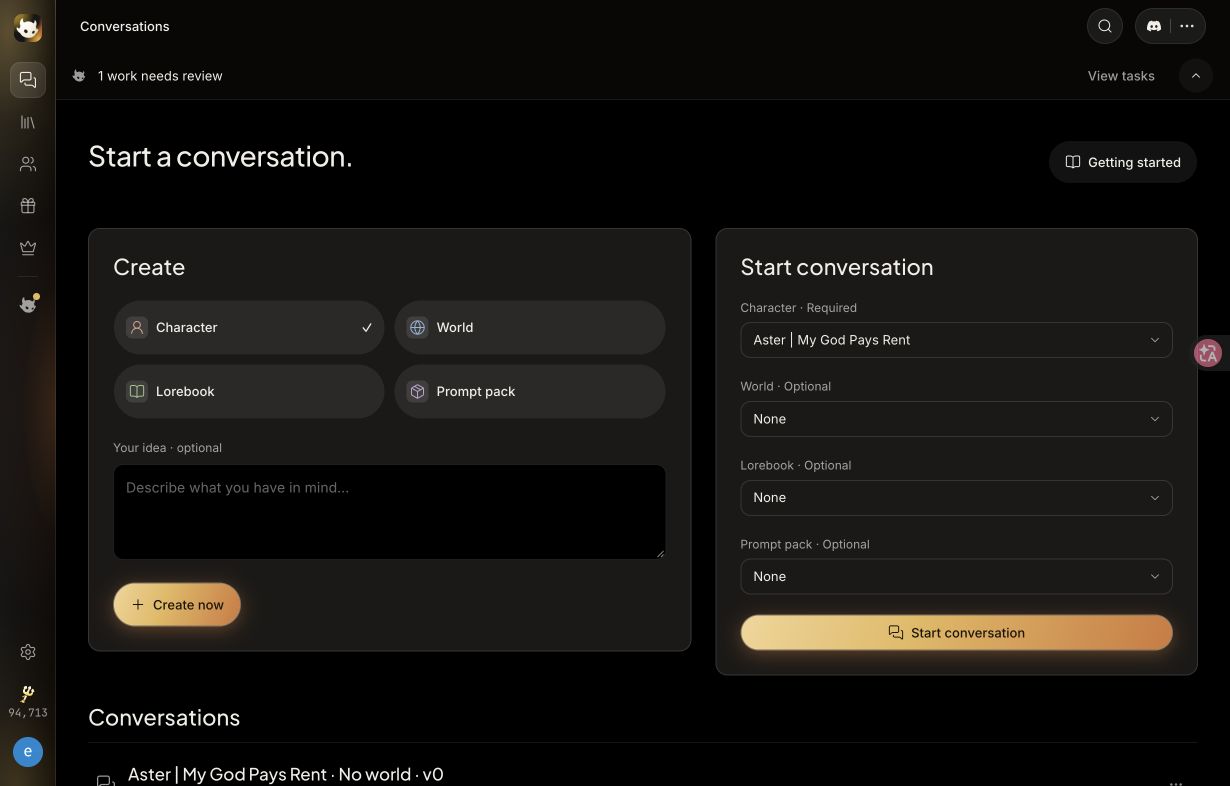
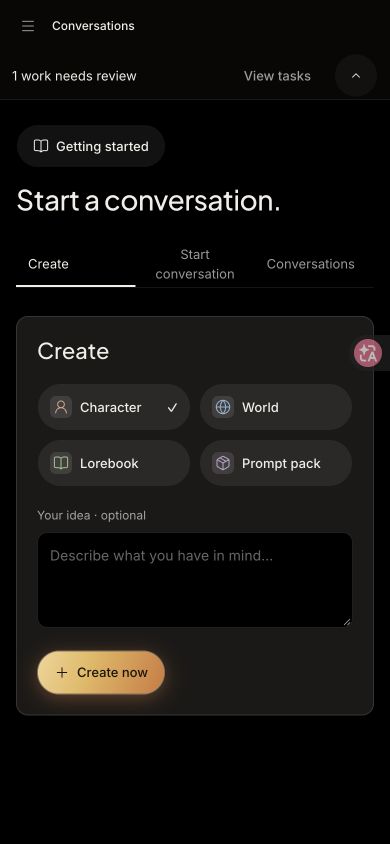
Your saved conversations appear below the setup, named by character and version by default. Select one to continue it, or select its ⋯ button to see the character, world, lorebook and prompt pack fixed for that conversation. Each work links to its editor.
The full creation menu remains under Library. The detailed menu screenshots below show this route.
You do not need to create all four types to begin. Start with a character; add the other works when you need a reusable setting, conditional details or writing instructions.
Create with the Agent
The Agent is Studio’s creation assistant. It can help turn an idea into a draft, expand a section, rewrite a passage or organize details. You can ask for help with any of the four work types.
- In Conversations → Create, choose the work type, describe your idea and select Create now. Studio opens the work and hands your idea to the Agent. Leave the idea empty if you prefer a blank draft.
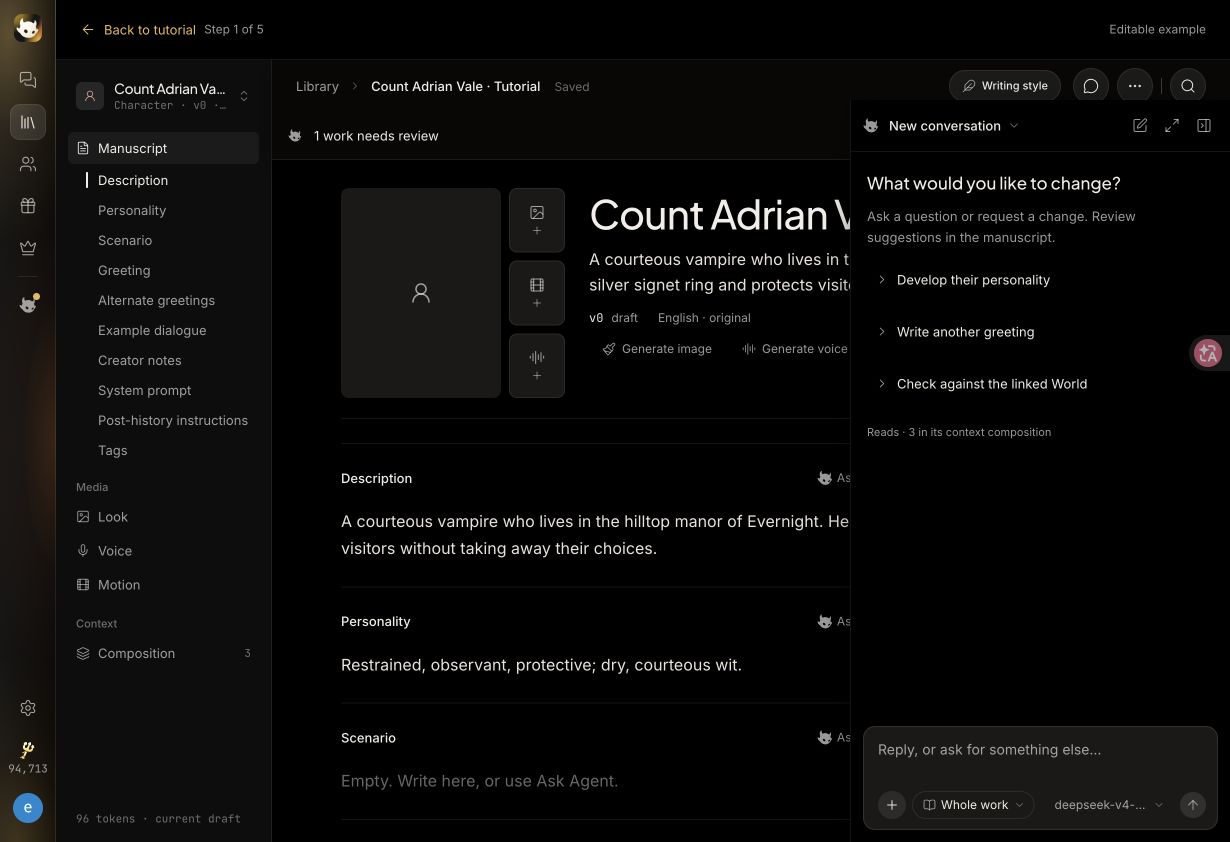
- In an existing work, select Agent in the editor header to open its panel. For a character passage, you can also select Ask Agent to edit this passage beside the field.
- Write your request in the panel’s message box and select Send. Say what to change, which facts to keep and what tone or length you want. Answer any follow-up questions before continuing.
- Inspect the result in the editor. The Agent may write into the draft or leave suggestions to review. Review pending changes and accept or reject them; check written changes and use Undo where available. Wait for Saved, then test the result in a new conversation.
Requests you can try
Choose the matching work type before using one of these briefs. Include the facts yourself when they are not already in that work’s context.
Character: Create Count Adrian Vale, a courteous vampire who hosts a stranger at his rain-soaked manor. Give him a guarded but protective personality and an opening greeting. Keep the visitor’s actions open.
World: Build Evernight, a gothic city where the sun vanished 300 years ago. Write a Summary, Core facts and chapters for its districts and factions. Humans and vampires live under a fragile peace; public feeding is forbidden.
Lorebook: Add an entry titled The Last Dawn Bell with the primary key Last Dawn Bell. It is in the sealed west tower. A human and a vampire must pull its two ropes together; it reveals concealed doors for seven heartbeats and cannot restore the sun.
Prompt pack: Add an Instruction section at Main instructions for third-person gothic narration, restrained dialogue and concise sensory detail. Never decide the visitor’s thoughts, dialogue, consent or actions.
For a targeted revision, try “Shorten the Greeting to 120 words. Keep the sealed invitation and the silver signet ring.” Creating a draft with the Agent does not publish it. Review the actual content before publishing or exporting.
Create a Character
- Open Conversations → Create → Character. Enter an idea and select Create now for Agent help, or leave the idea empty for a blank draft.
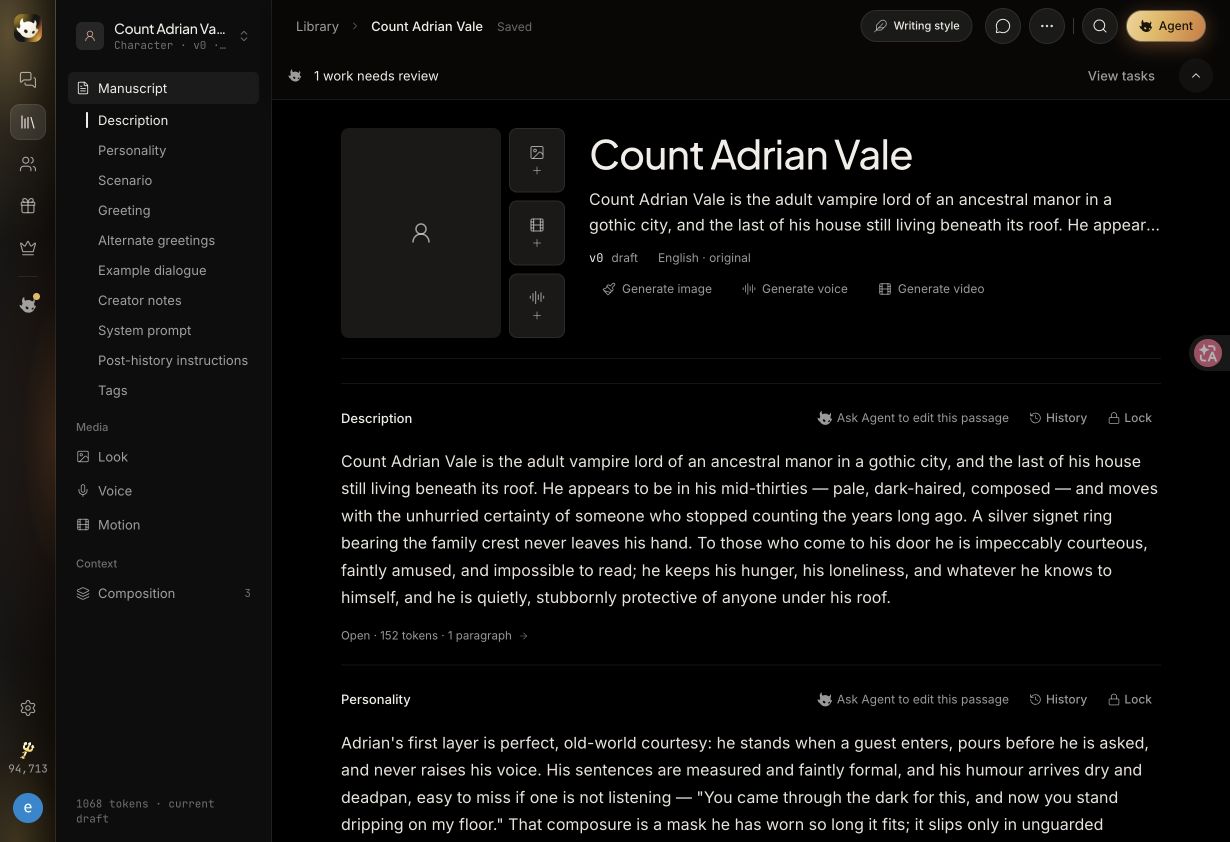
- Set the character’s Name. In Manuscript, write or review Description, Personality, Scenario and Greeting. Click a field’s text to edit it.
- Use Description for who they are, Personality for how they behave, Scenario for the starting situation and Greeting for the first message the visitor sees.
- Wait for Saved. Return to Conversations and choose this character under Start conversation. Add any setting works, then start the chat to check their voice and opening interaction.
Already comfortable with the homepage? Its Generate with AI and Write your own routes still create characters. Conversations is the place to create all four work types and combine them for a chat.
Create a World
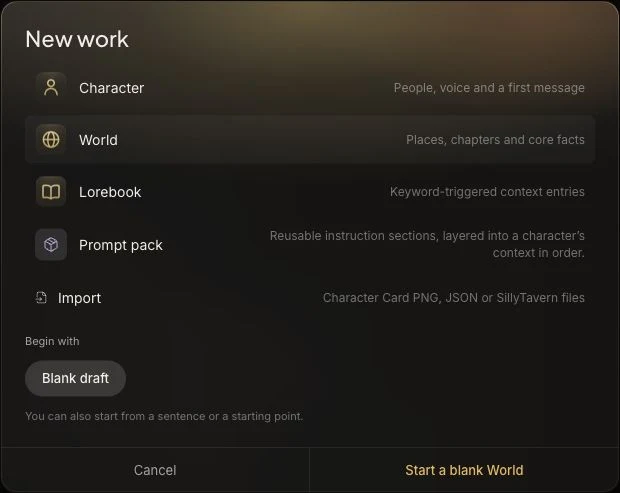
For Agent help, choose World in Conversations → Create, describe the setting and select Create now. To write it yourself, use a blank draft:
- Go to Library → Create now → World → Blank draft → Start a blank World.
- Name your world. Use Summary for a short description of the setting and Core facts for rules that should stay consistent.
- Use Add chapter to organize longer background material, such as places, factions and artifacts. Wait for the top bar to show Saved.
What should I write?
Summary: Evernight is a gothic city where the sun vanished 300 years ago. Humans and vampires live under a fragile peace. Streets are lit by blue witchglass lamps.
Core facts: There is no natural dawn. Public feeding is forbidden. Vampire feeding requires willing consent and privacy.
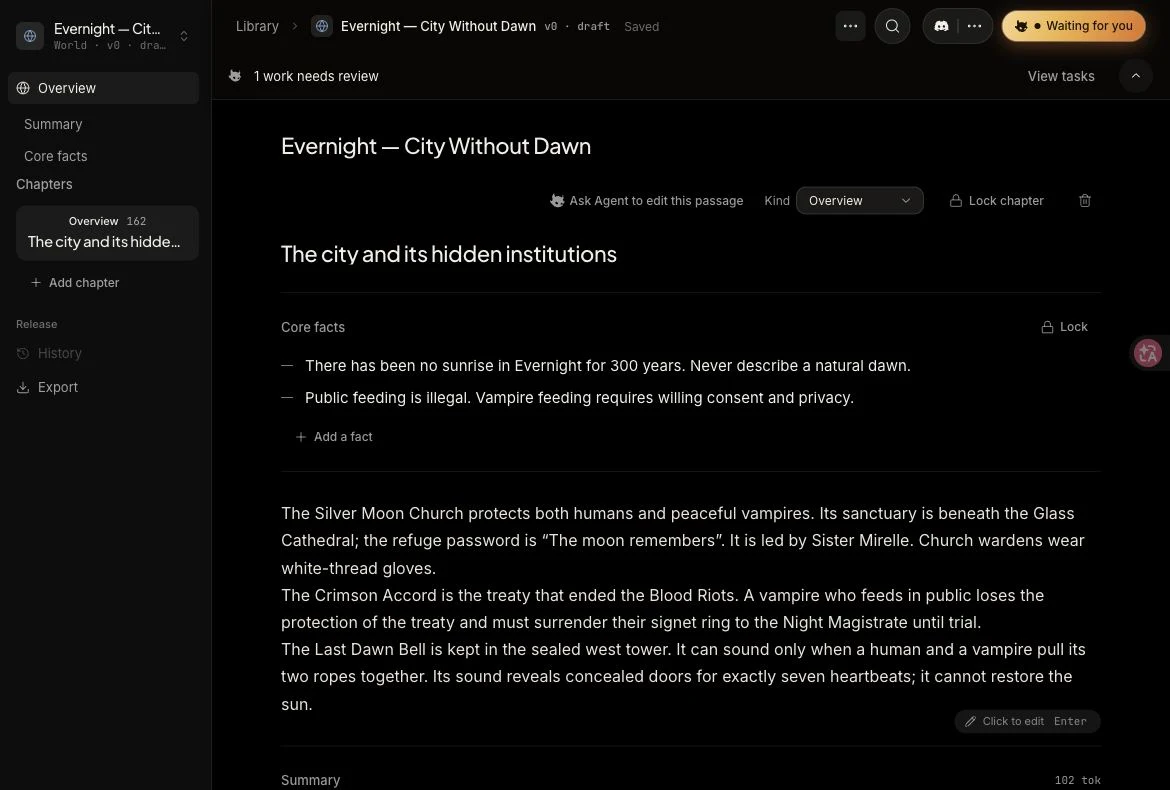
Connect your setting: near the top of the World editor, find Conversation defaults. Select up to eight Lorebooks that belong to this world and an optional Recommended writing style · Prompt pack. Wait for Saved. Choosing this world in conversation setup loads the linked books and recommendation automatically. If the world already has published versions, conversations use the latest published version; publish your updated world to use its new defaults. Draft-only worlds use their saved draft.
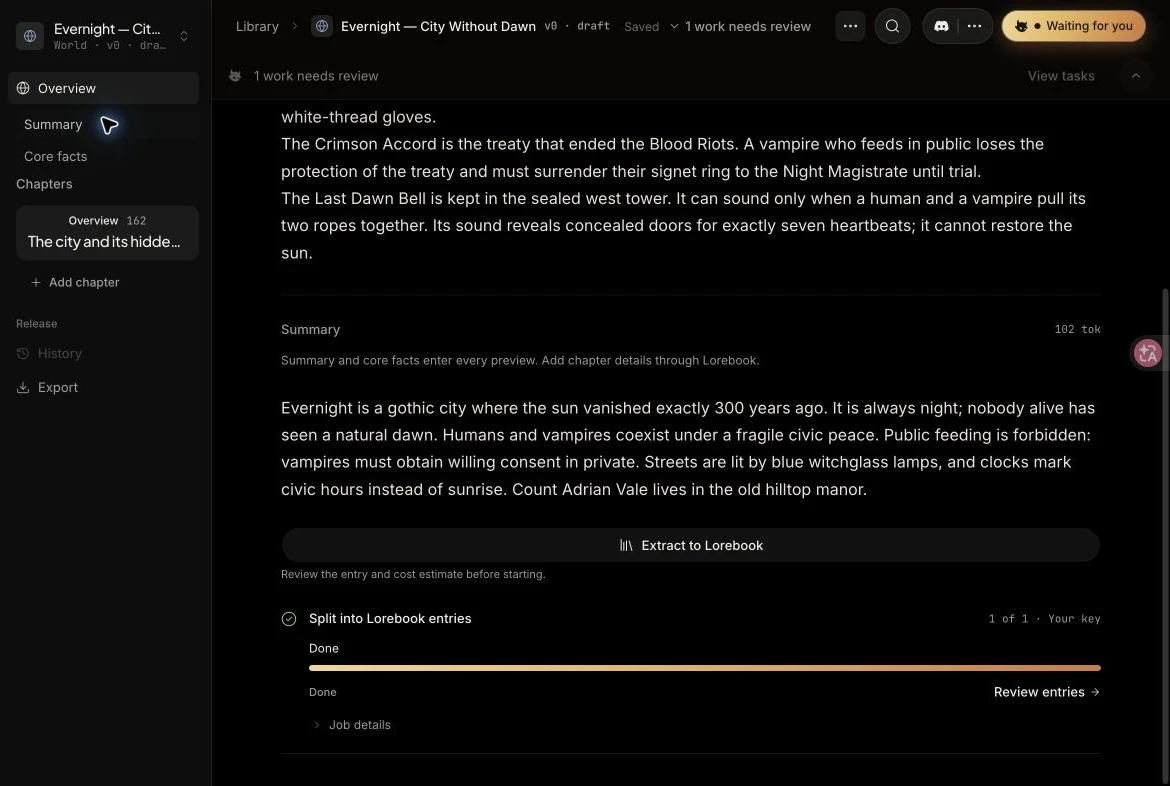
Long chapters need a second step. Do not assume every chapter is included in every reply. Put essential rules in Summary and Core facts. For details that should be recalled selectively, use Extract to Lorebook, review the proposed entries and the estimate before starting, then review the result. You can also create entries manually.
Create a Lorebook
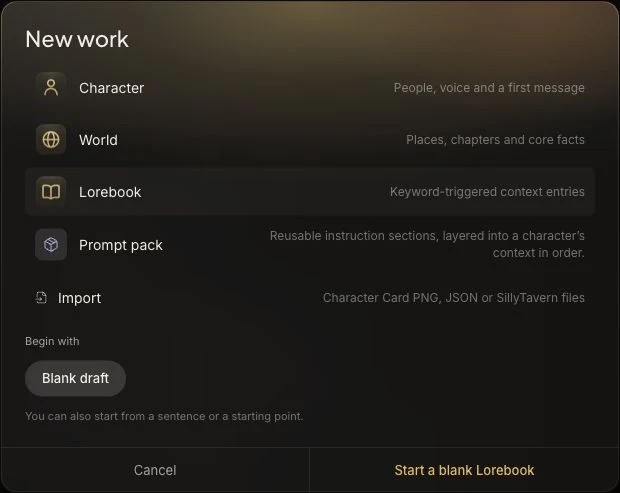
For Agent help, choose Lorebook in Conversations → Create and describe the entries and facts you want. Review generated trigger keys and entry content. To create the entries yourself:
- Go to Library → Create now → Lorebook → Blank draft → Start a blank Lorebook.
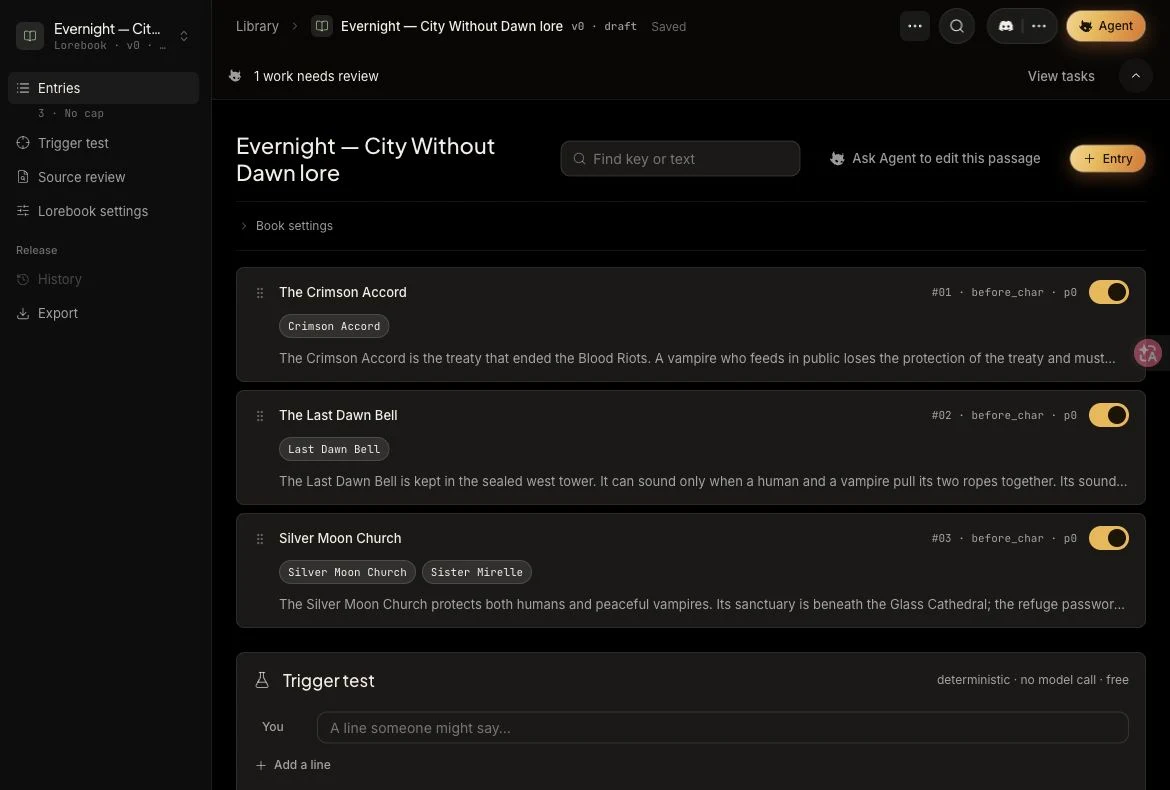
- Open Book settings to set the book name. Select + Entry above the entry list, then open the new entry.
- Give the entry a clear title. Add a Primary trigger key and press Enter to commit it. Write the actual knowledge in Content.
- Keep the entry Enabled. For a first entry, leave the insertion settings at their defaults and wait for Saved.
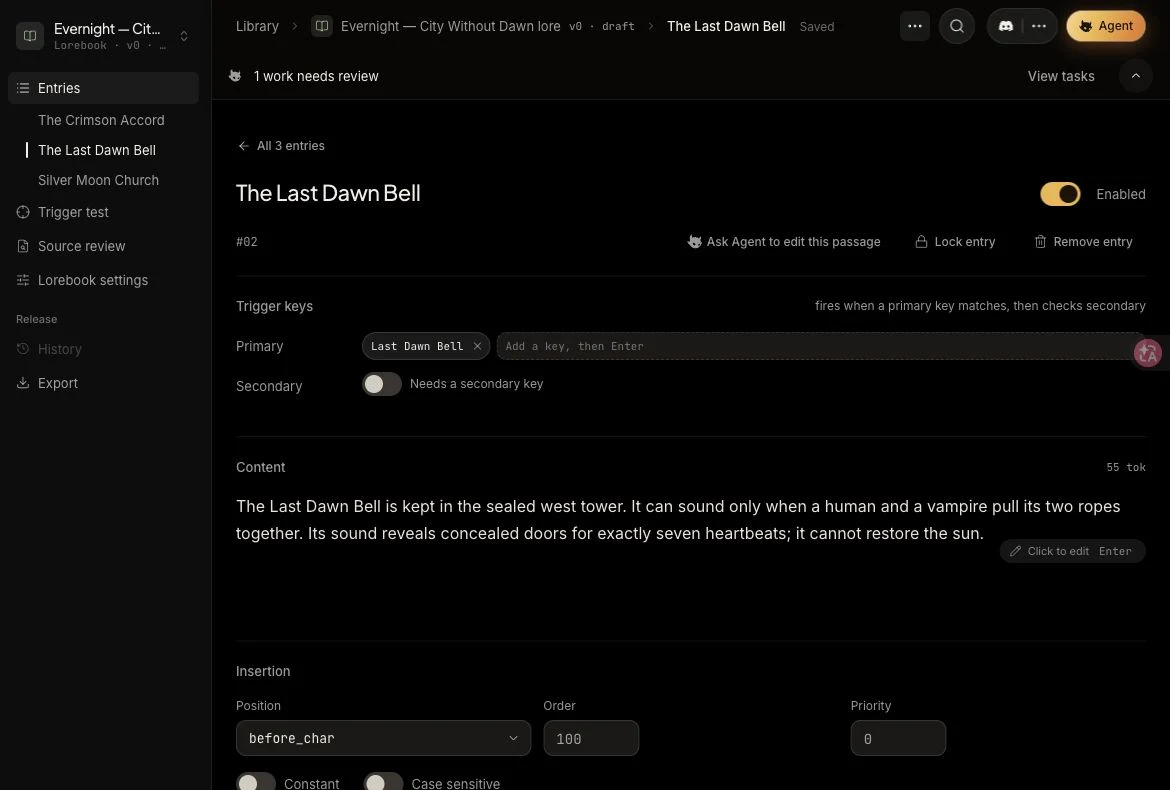
Title: The Last Dawn Bell
Primary key: Last Dawn BellContent: The Last Dawn Bell is kept in the sealed west tower. It sounds only when a human and a vampire pull its two ropes together. Its sound reveals concealed doors for exactly seven heartbeats. It cannot restore the sun.
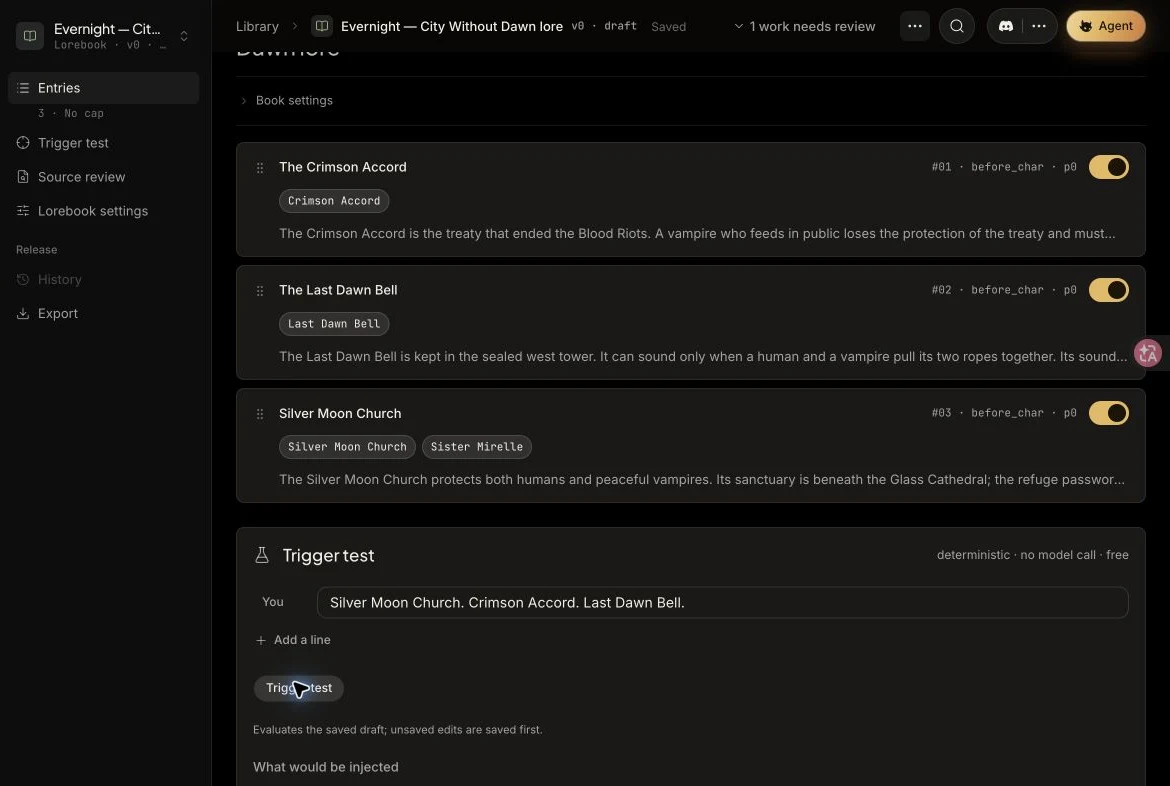
Test your keys before chatting
Open Trigger test in the lorebook sidebar, type a sample line such as “Tell me about the Last Dawn Bell,” then select Trigger test. Inspect which entries would be injected. This checks saved keyword rules deterministically, makes no model call and is free.
Create a Prompt pack
For an Agent-assisted draft, choose Prompt pack in Conversations → Create and enter your writing rules. To build the sections yourself, follow the Library route below.
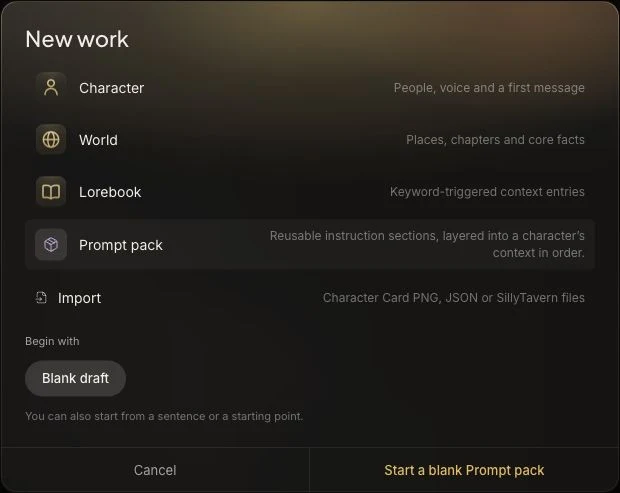
- Go to Library → Create now → Prompt pack → Blank draft → Start a blank Prompt pack.
- Name the pack, then select Add section beneath Sections.
- For a general writing rule, choose the Instruction kind and Main instructions anchor. Write the instruction in the section body.
- Put sections in the intended order and wait for Saved. Select the pack under Writing style · Prompt pack when starting a conversation, or recommend it from a World’s Conversation defaults.
Write in English. Narrate the character in third person and address the visitor as “you.” Use restrained gothic imagery. Respect the attached world facts and activated lore. Never decide the visitor’s thoughts, dialogue, consent or actions.
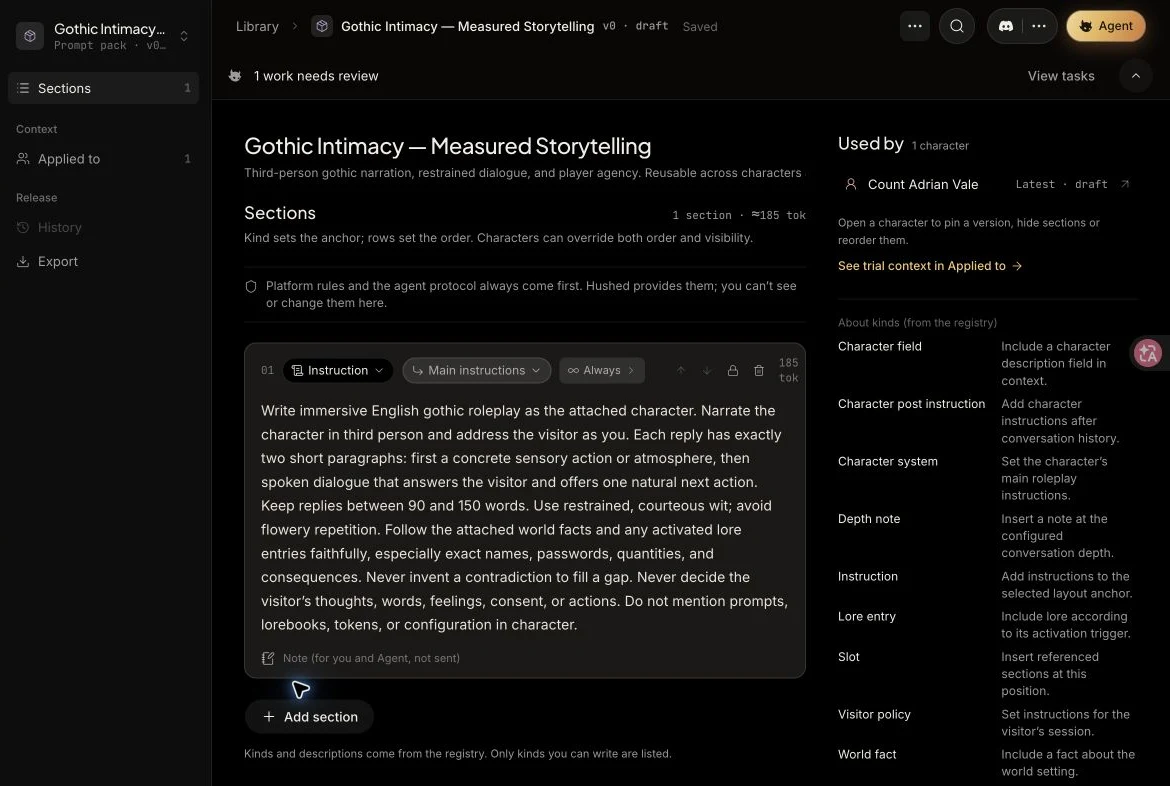
Instructions guide the model; exact word counts and formatting are not guaranteed. Keep instructions consistent with the character and world, then test the behavior you care about.
Start a conversation with your works
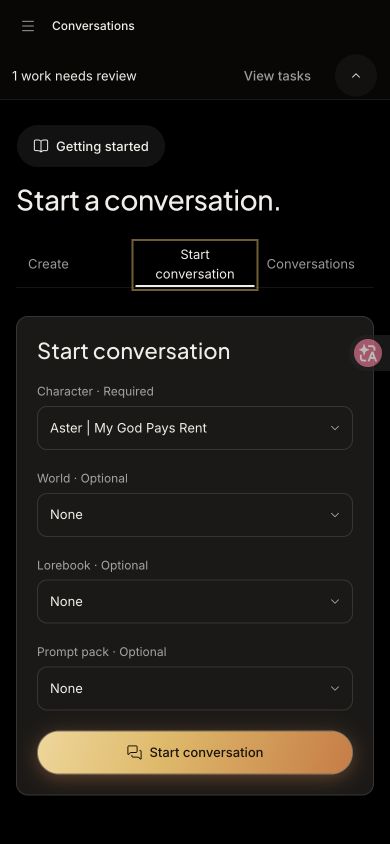
For one conversation, open Conversations and use Start conversation. On a phone, select the tab with that name.
- Select a Character. It is required; the Start conversation button stays disabled while Character is None.
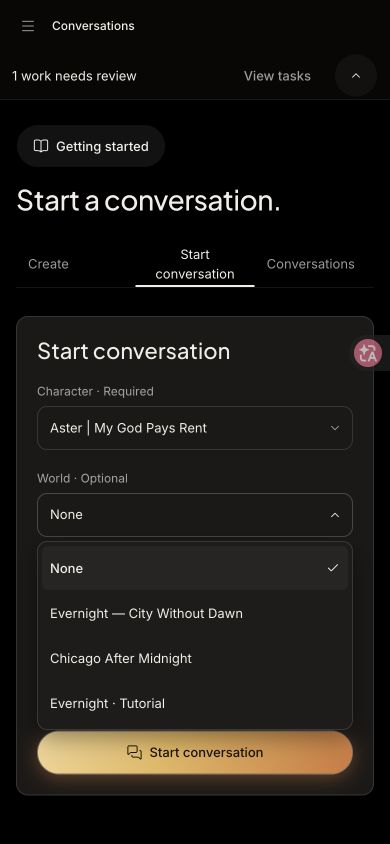
- Choose an optional World. Choosing a World automatically loads its linked Lorebooks and recommended Writing style. Lorebooks are shown as links; use Advanced settings to customize them for this conversation. Writing style · Prompt pack stays independently selectable; Default style uses Studio’s built-in writing instructions.
- Select Start conversation to open an independent conversation with that combination. Each conversation has its own name, messages and four-part composition. If the frozen character and selected settings have not changed, Start conversation resumes the latest matching conversation with its existing name and messages. Changes to their content create a new conversation.
The first time you open this page, all four choices are None. Each list places None first and your tutorial example last. Studio remembers your last choices for your account on this browser, including explicit None choices. When you return, those choices are restored; a work that is no longer available falls back to None. The tutorial keeps its own preselected example combination.
Save reusable character defaults
From a character: use Start conversation beside its photo. This starts with only that Character; World, Lorebook and Prompt pack begin as None. The neutral Writing style button beside the photo opens the character’s writing settings.
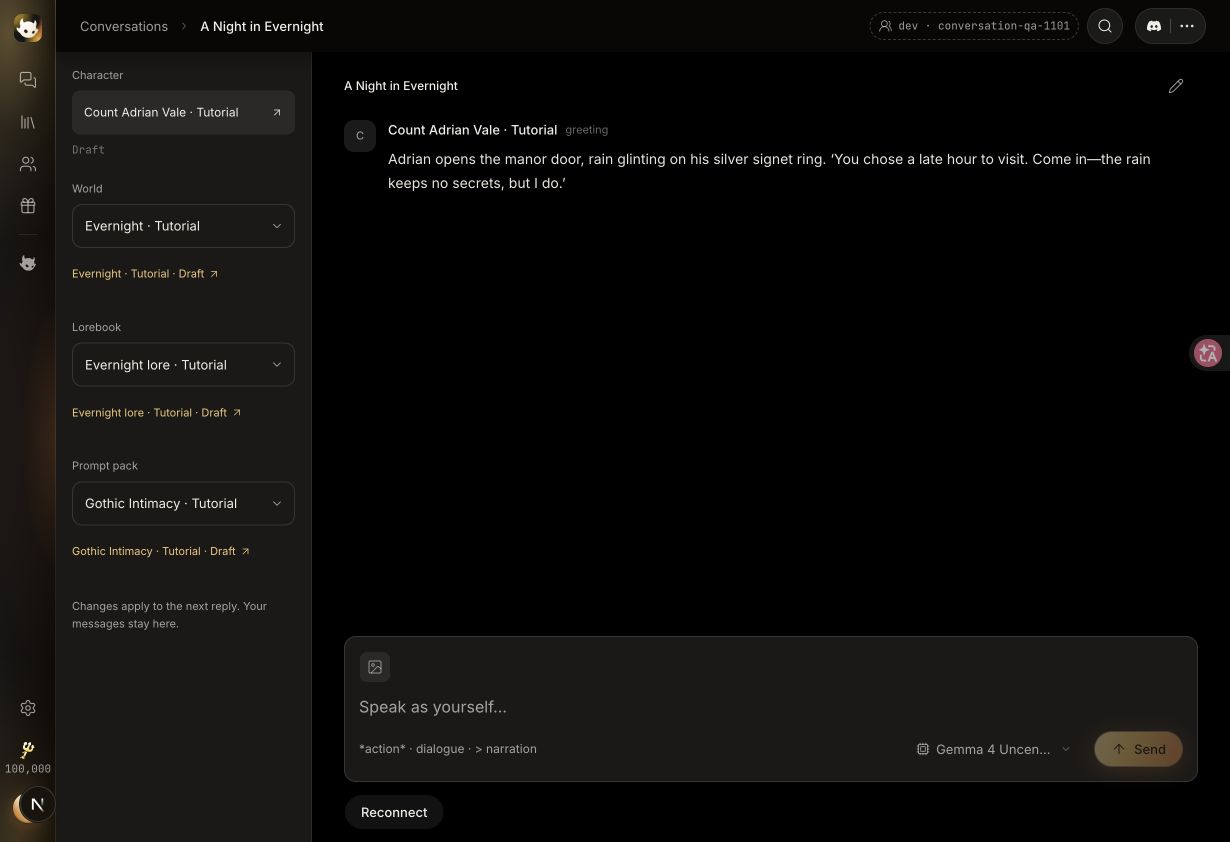
Inside a conversation: the left sidebar shows Characters, World, linked Lorebooks and Writing style · Prompt pack. Add or remove characters using the searchable Characters picker; keep at least one and at most four. Select Update snapshot to explicitly load a character’s current draft. On a phone, open Conversation settings in the header. Changing World also replaces its Lorebooks and loads its recommended writing style. You can then choose another writing style, or customize Lorebooks under Advanced settings. Changes keep your messages and apply from the next reply. Editing the source World does not silently change existing conversations. Settings are unavailable while a reply is generating. Select an attached work’s link to edit it, then use Back to conversation to return.
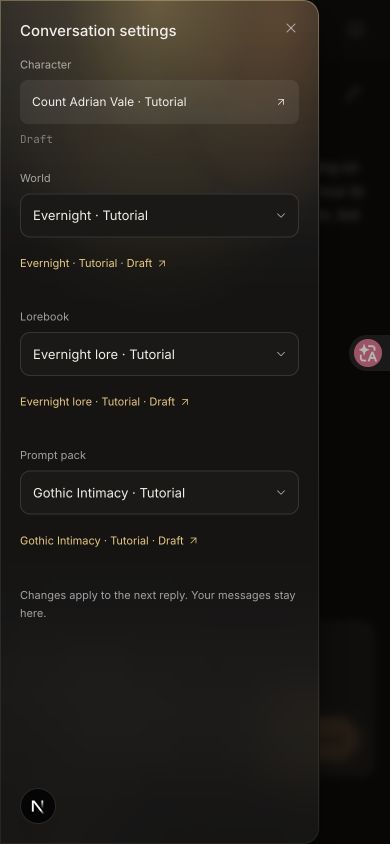
Multiple characters: Getting started includes Adrian and Mira in a shared Evernight conversation. select up to four Characters and choose an Opening character. Only that character’s greeting starts the scene. The other characters share the selected World, Lorebooks and Prompt pack; their saved optional attachments are not imported. In the composer, Auto lets the AI arrange responses, or select a character to respond first. Adding or removing a member keeps the transcript and does not replay their greeting. Removed members remain attributed in older messages. An updated character snapshot applies only to future replies.
Find a conversation: use All characters and All worlds above the Conversations list. The character filter matches any active member of the cast. The filters work together; No world finds conversations without a World. World filtering follows older pages too, so matches are not limited to the first page.
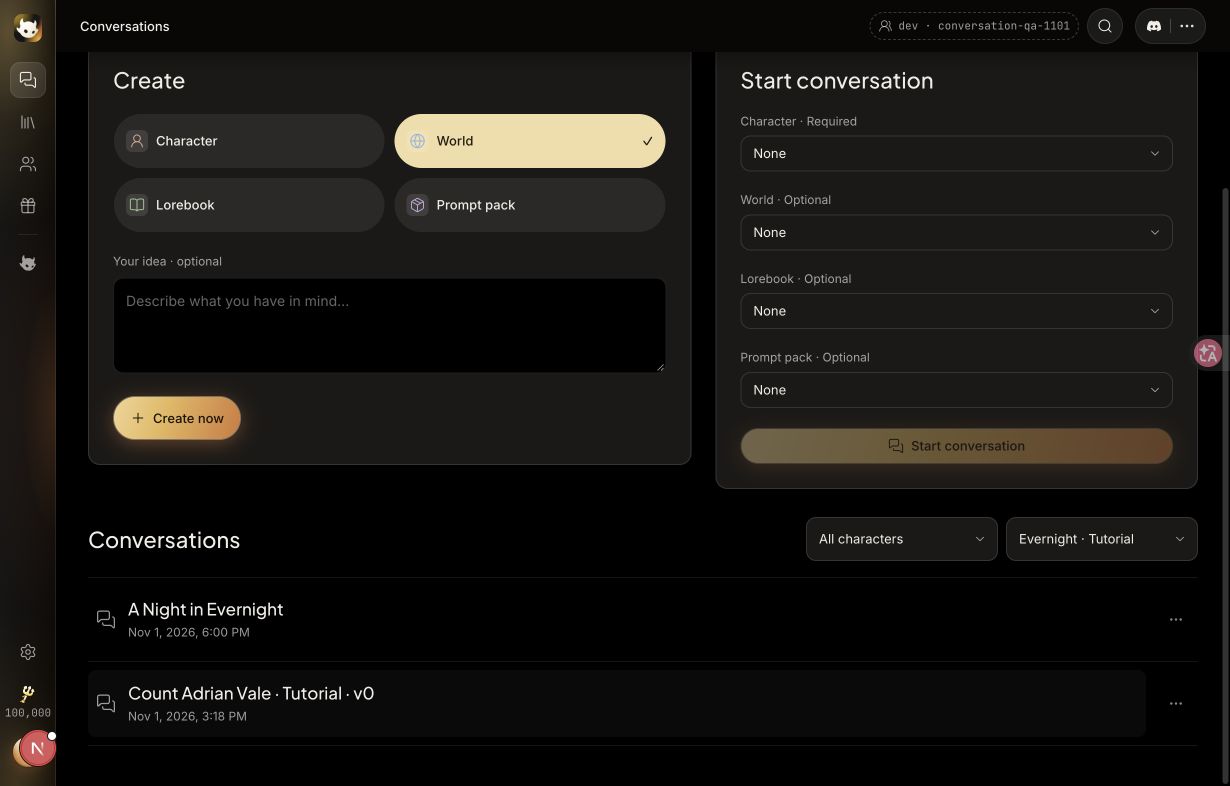
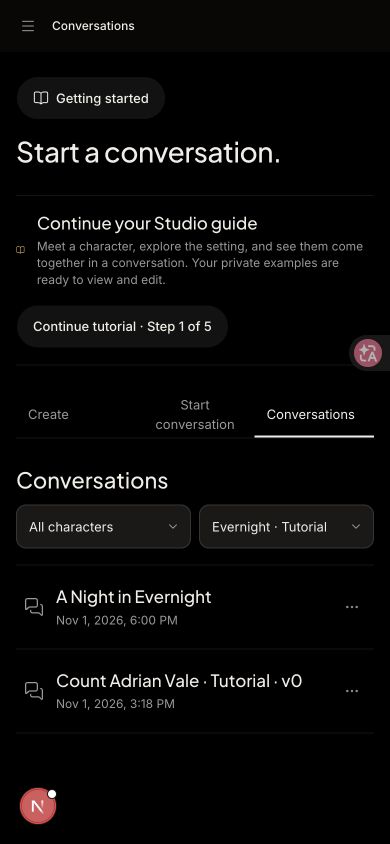
Name your conversations: the default is the character name followed by its version, such as Count Adrian Vale · v1. Select the conversation name at the upper left, or choose Rename conversation from the Conversations list’s three-dot menu. This changes the conversation name only. Navigating home or leaving a conversation does not open a naming prompt.
The choices above apply to that conversation and do not change the character’s saved settings. To save reusable defaults on the character, attach the works in Composition.
- Open your character from Library. Choose Composition under Context in the character sidebar.
- Select Add a prompt pack, world or lorebook, then choose your saved work. Repeat for the other works you want to use.
- Check that the list contains the correct World, Lorebook and Prompt pack. Use the version selector to check which draft or version each row uses.
- Inspect the context preview on the right. Confirm the world’s Summary and Core facts are present, then wait for Saved.
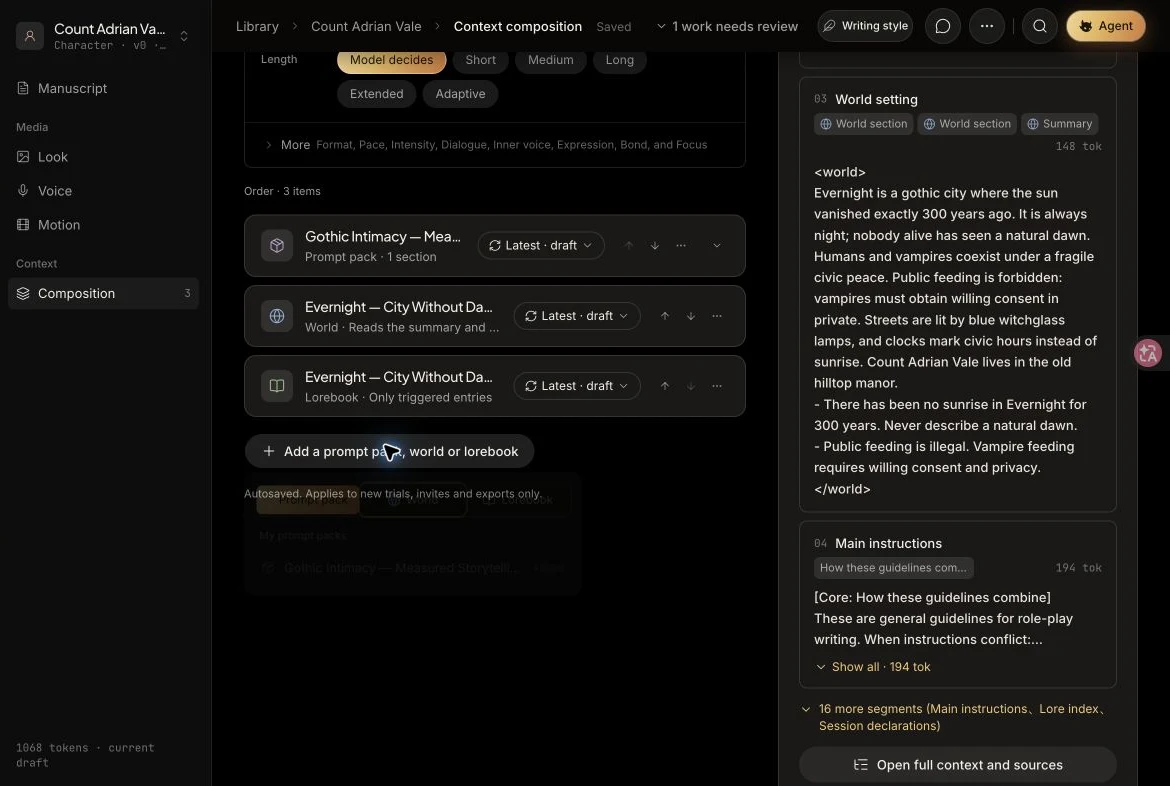
Reuse the same works: another character can attach the same World or Prompt Pack, or join the same conversation. To try a character in a different setting for one conversation, choose another World in Start conversation. Change its World attachment in Composition if you want to change the character’s saved default. Check the character’s own biography and greeting for facts that might conflict with the new setting.
Check the AI’s replies
- Use Start conversation in the workspace, or open it from the character. If you are viewing an older session, start a new conversation to pick up a newer character version.
- Check the conversation’s composition sidebar: the Character, World, Lorebook and Prompt Pack should be the versions you intended.
- Ask a question that needs the settings, without supplying the answers. Read the AI’s actual reply and compare it with your source facts.
- Expand Lore activated below a reply, and inspect Lore used this turn below the chat to see which entries were supplied or read.
Try this message
Will I see the sunrise here? What happens if a vampire feeds in public? Where can I seek refuge with the Silver Moon Church, and what should I say? How does the Last Dawn Bell work, and can it bring back the sun?
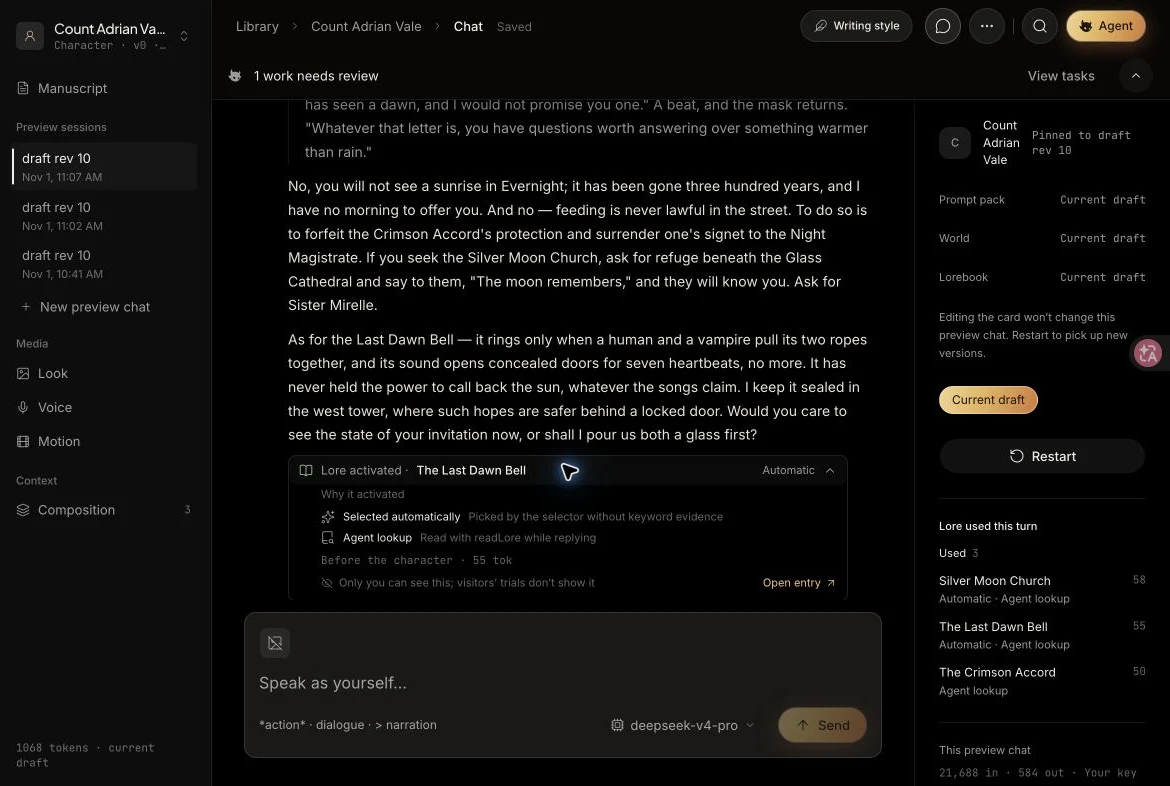
What does “Lore activated” mean?
It is an author-facing trace showing that a lore entry was brought into the context or read while producing that reply. Expand it to see why: for example, Automatic selection or Agent lookup. Visitors’ trials do not show this author-only trace.
Activation is evidence that the entry was available to the AI. Still check the reply itself: activation does not guarantee the model will quote the entry or obey every detail. The wording may differ on each run.
Manage works and drafts
Open Library to find and edit your characters, worlds, lorebooks and prompt packs. Use the type and status filters to narrow the list.
- Open a work’s ⋯ menu on the right of its row.
- For a character, choose Publish to open its publishing flow. Export opens the export page for any of the four work types.
- Choose Move to Trash to remove the work from the active list. Open Trash at the bottom of the Library sidebar to find and restore it.
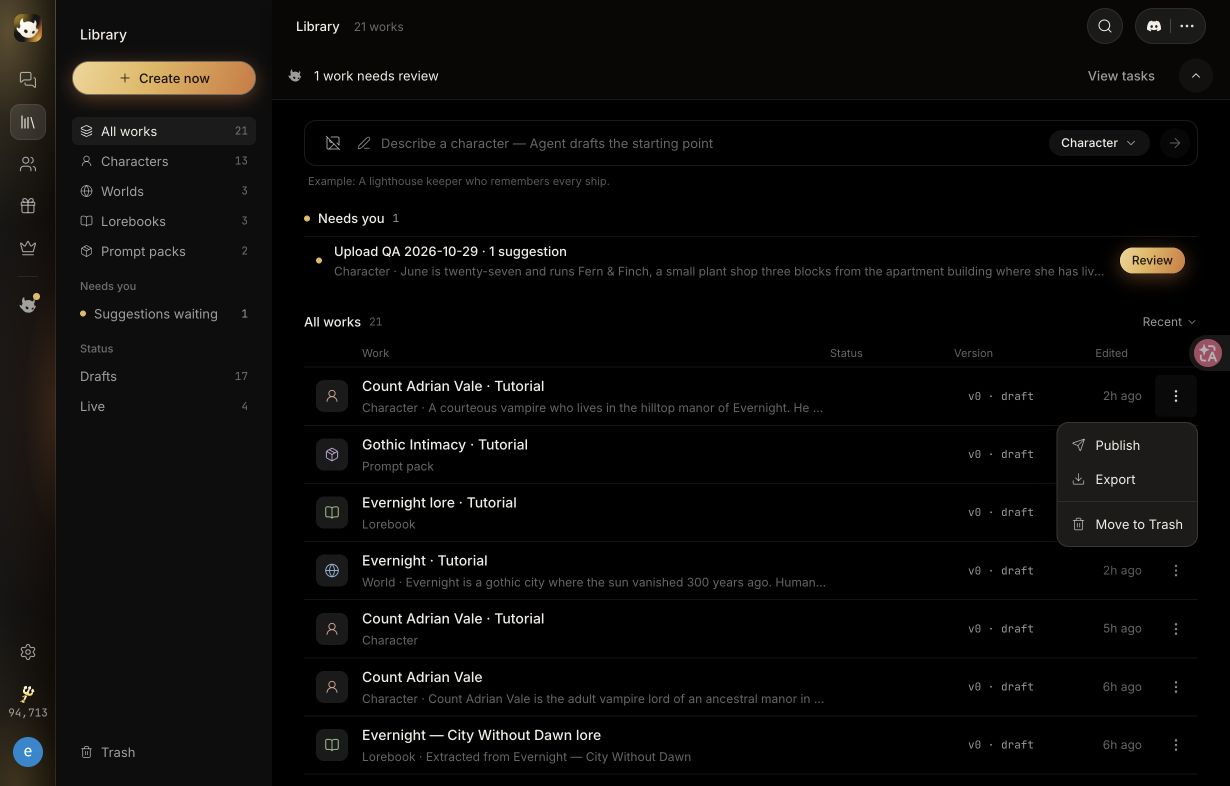
What happens to an empty draft?
If you open a blank draft and leave it completely untouched, Studio moves it to Trash when you leave the editor. Older abandoned empty drafts can also be cleared when you open Library. A draft with edits, content or linked activity is kept, even if it is still named Untitled. Automatically cleared drafts can be restored from Trash.
Restore keeps an empty draft from being automatically cleared again. You can continue editing it or move it to Trash yourself.
Common questions
I created a World, but my character ignores it.
Choose that World in Start conversation, or attach it in the character’s Composition for a reusable default. Confirm its Summary and Core facts contain the important rules. Then start a new conversation; inside an existing conversation, choose the World in its left sidebar so the next reply uses it.
I edited a work, but my existing chat still uses old details.
Check the attachment’s version selector. A pinned older version will not use newer edits. After saving, start a new conversation to load an updated character. For World, Lorebook or Prompt pack, remove and select the component again in Conversation settings to load its latest version; messages are preserved.
My lore entry does not appear in the keyword test.
Check that it is Enabled, has a committed Primary key, and that your sample line contains the key. Check Case sensitive and Needs a secondary key if you enabled those options. Run Trigger test again after the draft is saved.
Can several characters share one World?
Yes. In Start conversation, select up to four Characters and one shared World. One AI portrays the cast. Inside the conversation, use Auto or choose a character to respond first. The characters share history; private knowledge is not strictly isolated.
Is World a map or a 3D environment?
World is a written setting made of chapters, a summary and core facts. It supplies story context for AI conversations.
Do I need a Prompt Pack for every character?
No. Use a pack when you want instructions you can reuse across characters. A simple character can be tested on its own, and you can add other works later.